Tuesday, March 31, 2020

Have your heard that ____is free during this?

Many companies are generously offering their content for free during the COVID-10 crisis. This is great, but as educators, there are some factors that need to be taken into account before jumping into this week's fad program.

Federal Regulations for children and technology:
There are three laws that govern what schools can do with students and technology. Most companies in the ed-tech sphere abide by these laws, but there are sometimes differences between free and paid versions that can be a liability for teachers. The three laws that we need to follow are:

1. COPPA: The Children's Online Privacy Protection Act prevents websites and online programs from being specifically marketed to those under 13 without parental consent. This law doesn't necessarily apply to programs that are marketed toward adults (ex. Zoom) Essentially, students who are under 13 cannot use programs that are not designated for their use.
2. CIPA: The Children's Internet Protection Act requires schools and districts to provide measures that help protect student safety online including education, filtering, and other measures. This is why YouTube has been blocked for elementary students and our internet filters are in place.
3 . FERPA: The Family Educational Rights and Privacy Act protects student privacy and bars the unauthorized release of student information. This can become an issue when sites are offered for free. Often, free apps make money through advertising revenue or data mining. When students are logged into a site, particularly one that is handling personal information, images, or other data, this data may be fair game for the site to mine and sell to third parties.

For this reason, we implore you to wait on adopting a program immediately. Instead think it through using these steps:
1. Do we have something that accomplishes this goal already? If we do, it is best to minimize both data risks, liability, and more practically, the number of sites students need to figure out and learn.
2. Have you read the privacy policy? If not, take a look. They detail how a site uses everything from what your camera sees (if used with the site/app) to what hardware or software you have on your computer and everything in between. Much of this may be personal data we don't want to encourage students to share if we can avoid it.
3. Who is the original intended end user? Companies that are oriented toward the education sector typically have specific polices that address each of the laws above and specify their adherence toward them in plain language (as required by COPPA). If the end user is intended as a corporate user, the policies may be harder to find or non-existent.

Tuesday, May 14, 2019

No More School, No More Books, but my Tech is Giving me Dirty Looks...

You've almost made it to the end of the year. You are taking down posters and cleaning up your room, but what about your tech? There are a number of housekeeping things you can do now so that your classroom tech isn't a mess when you return in the fall.

1. Clean up your Google Account:
- Does your inbox make you cringe? you can archive and label your mail so that it is organized, but not cluttering your inbox. Nothing is deleted in this process, but you can put it out of sight until it is needed later.


- Clean up your Drive:
Now is a great time to take a look at your files in Drive. Do you add files to the main screen every time you start a Google doc? Are there 47 Untitled Documents that are sitting with no text in them? Delete what you don't need, and create files for the rest that organize what you have in a simple way for you. You can even color code your files!
2. Take a look at Schoology: 
Your current courses in Schoology are archived each summer. You still have access to them, but will need to search for them in the archived courses area. Instead of digging through old classes, this is a great time to save the materials you want to your resources. You can create files and organize any assignments, etc. in your resources so they can be easily added to next years classes saving you work and time! To do this: 
1. find a folder, file, or other item in a Schoology course
2. Click the gear icon
3. choose "Save to Resources"
4. Click the Resources tab at the top of the page and your selected files will now be in your Resources. Clicking the gear here will allow you to "add to course", move files, and reorganize to better meet the needs of next year's students. 
5. Do you have a team you teach with? You can even create/share resources with the group by creating a Group within Schoology resources. 


3. I'm Leaving Now:
Are you leaving for a new job/ graduating/ retiring? You can take the contents of your Google account with you. Use Google Takeout. This program allows you to choose the areas of your account you want to take with you and export the data to another account. It is a great way to retain access to any important items you have, portfolios to show prospective employers, things to hang on the fridge, etc. 


Friday, April 12, 2019

Accessing GALE Resources in Schoology


Not that kind of Gale

GALE has created a series of resources that are available for teachers and students to use for research and lesson planning. These resources have been made available through Schoology to make it easier to incorporate them into assignments and student work without needing to login. 
Gale is "deeply integrated" which means any article can be pulled into an assignment, discussion, etc. from within Schoology itself.

Create an Assignment, etc. in Schoology:


1. Create an assignment, discussion, etc. and choose the "insert content" button at the top menu bar


2. Choose a database from the list that pops up.
3. This will open the database within the assignment window. Find the article that you would like to include
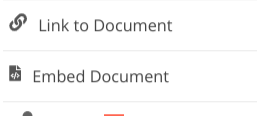
4. When you find the article, look at the right menu bar. There are two options for including the article: embed or link. Embed will put the article inside the assignment window and give all Gale's tools to students within Schoology. Link will open Gale in a separate window


GALE truly provides an awesome amount of research possibilities and information: From analyzing different points of view on a topic, to deep looks at different topics in any subject area, we encourage you to explore these great resources with your classes.

Thursday, March 14, 2019

Schoology Connect Conference June 20, 2019

SAVE THE DATE:
JUNE 20, 2019
8AM - 3PM


Location:
Olentangy Berlin High School
3140 Berlin Station Rd,
Delaware, OH 43015


Calling all educators and administrators! Join us June 20, 2019 for CONNECT OH - a FREE day of interactive, professional learning opportunities with Schoology!

With regional networking and relevant content, this one-day event will leave you inspired and ready to advance what’s possible in your school or district.


CONNECT OH will include:
  • A special message from Schoology on Advancing What's Possible in Education
  • A keynote from a local educator or administrator to kickoff the day
  • Your choice of sessions from Schoology and the community on topics like:
  • Ongoing Professional Learning
  • Curriculum Framework
  • Student Centered Learning
  • Assessment and Feedback
  • Engaged Communities
  • Leadership and Administration
  • What’s New with Schoology’s LMS and AMP
  • Networking opportunities with educators and education leaders in your region
  • The opportunity to learn from and ask questions to Schoology product experts
  • A certificate of participation that can be used for continuing education units (CEUs)
Registration will be open soon, but we are currently accepting presentation proposals: Share Your Expertise! presentation proposals are due APRIL 1st! No Joke!

Friday, March 1, 2019

MakerX 2019 is Coming!

Looking for an activity to which you can bring your family, inspire your educator side, and also have a great time? Well, look no further. MakerX 2019 is coming!


MakerX, The Columbus Maker Expo is an annual public festival celebrating "creating with

technology". It brings together makers from all over the region to share their work and engage
the public. The core of MakerX is non-profit educational institutions in the Columbus region but
the event welcomes participation by community makerspaces, other non-profits, businesses,
clubs, and individuals.

There will be exhibitors and activities for everyone including drone racing, robotics,
augmented and virtual reality demos, DIY instrument building, garden welding,
3-D printing demos and samples, coding, Lego, cardboard creating and much, much more. A complete list can be found here.

Westerville City Schools will be represented by students and teachers showcasing coding
and robotics. The Augmented Reality sandbox will be present for hands on experiences,
as well.
MakerX The Columbus Maker Expo is a festival of creating with technology. It is suitable for
all ages and will take place on Saturday, April 6, 2019 in the Buckeye Building of the
Ohio Expo Center (aka State Fairgrounds).


For more information, please see the MakerX website or contact Rachel Lacy or
Anne Baldwin with any questions.

Friday, February 15, 2019

Cool Stuff We Learned at OETC


This week the Ed Tech Team as well as other Westerville staff went to the Ohio Education Technology Conference. This year's theme was Artificial Intelligence and there were a number of speeches and sessions focused on how AI might transform the world of education.  We learned a ton of cool stuff and are bringing the highlights (and accompanying resources) back to you! Below is a small sample of the hundreds of sessions that were held over three days. Take a look at any/all that interests you!


Create a Self Organized Learning Environment!
SOLE is a specific program that has some value, but there are a number of features of the program that can be applied to many different circumstances. The framework is useful for guiding inquiry based learning. Links in the presentation contain a number of resources including question stems for beginning and inquiry process.

Google Doc add ons for students and  teachers!
There are tons of great add ons (mini programs that extend the functionality of Google docs) there are options that allow rubrics, voice grading, equation editing, block distractions, and a host of other options including some interesting surprises!


Machine Learning with Google Explore and AI Experiments!
Google has a ton of experimental AI programs that can be applied to different classes. Many of these are also helping Google train their AI programs in how to recognize different inputs. For art and music teachers in particular, there are a ton of ways to create art or music from different interesting inputs (For example, creating music from how a painting looks) Other options are aimed at Universal Design for Learning and other accommodation that can make it much easier to reach students with particular needs such as real time closed captioning on Google Slides.  Take a look at the hundreds of cool projects! The best part is they are open source and you can contribute your own if that is your inclination.

Clever Crazes for Kids: FREE Steam-integrated K-8 Academic Enrichment!
This site was created by U.C. and Purdue. It consists of different games and challenges for kids that revolve around STEAM learning. (Science/tech/engineering/art/math) The kicker here is that kids can earn real prizes for what they do here. The materials are fun and engaging and can be a nice supplement for kids.

Open Space: Open Education Resources from InfOhio!
InfoOhio has created a site where they gather Open Education Resources. These are free, completely modifiable materials that operate under Creative Commons Licensing which means that you can change them, cut them up, use them, etc. as long as the original author is credited. They are curating the resources on this site. Looking for something new to get away from repetitive textbook exercises? Start here! (or ask your tech coach- its what we do!)

The Future Ready Framework!
Westerville signed on the Future Ready Framework awhile back and PD is ongoing about the different gears that make up the framework. All the gears are aimed at making sure students are...ready for the future

Smartphone Addiction!
Smartphones allow us to access ways of connecting with people, succeeding, sharing stories, and getting positive feedback  as much as we want. This has led to adults and students becoming addicted to smart devices. Some interesting statistics were shared regarding the lack of self control that many people feel they have over the phone usage. This reality gives us the opportunity to have productive discussions about how to guide students (and adults) into using phones for productive reasons, not just for entertainment and breaking cycles of addiction while maintaining the positive impact of technology. 


General themes!
Universal Design for Learning 
is emerging as a new facet of education trends. Remember, the names are different, but the intent is the same. Give every student the best education possible using the tools we have available.

Applying Blended Learning in the classroom.
A number of teachers presented on how they are applying using technology and other tools to personalize learning for their students (again, good teaching wrapped in a trendy title) They offered a great chance to see things in action across every grade level. Many teachers were also open to having visitors. If this is something you are interested in, let your tech coach know and we can talk more about how to implement this.

Tools, Tools, Tools
In almost every session, presenters shared new and existing tools they use to improve the efficiency of their teaching and how their students access knowledge. There are far too many to list here, but we encourage you to think about things you have always wanted to do. Chances are that there are tools that will assist in doing that. Talking to your ed-tech coach or library media specialist is a great place to get started!

Pizza can be improved?
Apparently, it is possible to order a hot dog stuffed with pizza toppings with the bun created by...wait for it....a slice of pizza. According to all who tried it.  This is a true game changer.

this is just the tip of all the different things that we saw at OETC. If you want to improve instruction, try something new, or just hear more about what we saw, let your Ed-Tech coach know!


Friday, January 18, 2019

Project Based Learning Comes to Westerville.

In Partnership with Otterbein University, Several Westerville City Schools teachers have taken part in the Out of the Gate Project. This project pairs Otterbein students with teachers in the district to take part in intensive Professional Development and, as part of the student teaching experience, plan and implement project based learning in the classroom. The goal of the project is to engage student in deeper, more meaningful learning. Project Based learning involves approaching learning through driving questions that often contain multiple curricular areas. Students research solutions, put together presentations, and present their findings to an authentic audience.

Several Westerville Teachers took part in the Fall symposium where the classroom teachers and their Otterbein student teachers presented the work that they did over the fall semester (photos courtesy of the Out of the Gate Project).


Megan Glassmire (L ) and Dawn Ramsey (R) Huber Ridge 4th Grade
Driving Question: How do we keep the natural environment safe


Beth O'Reilly (L) and Tracy Jones (R) Wilder 3rd Grade
Driving Question: How can we encourage people to live, work, and play in our community?

Several other Westerville teachers are participating in the program as well including Caitlin Begeny (Genoa), Linda Amici (Alcott), and Kelly Moff (Annehurst).

The program will be continuing next year. Interested teachers are encouraged to contact their Ed-Tech coach to learn more about the program.

Wednesday, December 12, 2018

Schoology can do that?


 Each week it seems like there is a new app that we can use to increase student engagement, foster creativity, or increase student performance. Many of these apps can be very effective, but it can be cumbersome to keep track of what does what and how many logins you have to different programs and sites. It has been awhile since we took a look at some of the lesser known features of Schoology, but many of these apps and features are available within Schoology with the added bonus of having all your students signed in with no additional work required! Some more popular apps and their Schoology equivalents are below:

1: FlipGrid VS Discussions with Video Reflection
Flip Grid allows you to create a grid of video based responses where students can make short reflections on their learning. In Schoology, it is possible to record video or audio clips as a method for any assignment or discussion. in order to do this, simply choose the microphone icon and follow the prompts to record.


2.  Poll Everywhere vs. Polls within Schoology
Poll Everywhere is a popular app that show real time student responses. Schoology has a similar feature that is located within the updates tab on each course page. Create a poll and students can respond to your questions and see the summary of what responses were.


3. Student Websites vs Schoology Portfolios
Many teachers use websites as a way for students to gather their work in a portfolio. Schoology has a built in portfolio feature that can be used as well. Click on your name in the top right of the screen and choose "my profile" in your profile, there is a tab labeled "portfolios". Here you can create pages and folders and even import assignments from Schoology.
Image result for schoology portfolio

There is a ton more that you can do within Schoology that emulates some of the more popular education apps. You can also add certain features like Khan Academy or other sites directly within Schoology. If you want to know more about consolidating the websites you use for teaching into one site, contact your friendly local Ed-Tech Coach!

Wednesday, November 14, 2018

Pretty Fly for Our WiFi

In our district, there are three WiFi networks that Chromebooks have access to: Guest, Inet, and WCS. Each have different levels of network access. Make sure you are using the right one to meet your needs and avoid the panic when a site you swore worked yesterday no longer works by following the tips below!


Guest: This is designed for visitors to our district. Depending on where you access this network from, you may need to have a sponsor that can approve your accessing the network. This is also the most limited network. There are a large number of blocked websites. 

Inet: The Inet is the default setting for many of the Chromebooks and is most like what students have access to. It has a medium level of access to sites. If you are having trouble accessing certain websites or portions of websites (videos, images, etc.), this is a good place to look first in your troubleshooting. Many sites use larger hosts like Amazon or Google for their content and they will occasionally be blocked by this network. The login information for this network is programmed into the Chromebooks. 

WCS: This network is tied to your login information, so it gives teachers more access to sites they may need.  It is the least locked down of the websites and offers access to a number of sites that may not work on other networks. If you can access a site like Netflix to show a documentary or instructional video from your desktop, but not on a Chromebook, you are most likely not signed into WCS on the laptop. In order to sign in there are a few steps that you need to take. 
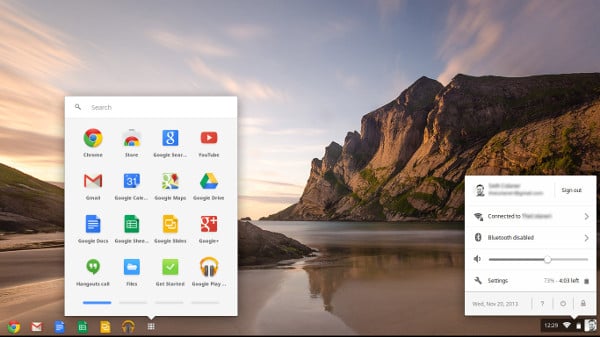
1. Go to the toolbar at the bottom of your screen and click on the clock at the bottom right
Image result for chromebook toolbar
2. Click on the WiFi symbol and choose WCS
3. Fill in the login info...
-You will need to do several things in order to do this:
a. Change the EAP method from LEAP to PEAP. 
b. Type in your username (whatever your Google login is minus the @westerville.k12.oh.us
c. Type in your password- the same that you use for Google login. 

You should be connected! Happy Interneting! As always, if you have questions or want to know more about the technology available to you, contact your friendly neighborhood ed-tech coach!


Thursday, October 25, 2018

Using Technology to Bridge the Gap for Teacher Absences

From time to time even the strongest immune system can be foiled by a few germs. But you can still make the most of those days by using technology to bridge the gap. As the “season of sickness” looms ahead of us, here is a valuable article from Common Sense Education on the ways you can use tech tools to make the most of sick days or when you have a guest teacher. Stay well! But just in case...


We hope this helps! If you have any questions or need some help, don't hesitate to reach out to your building's Ed Tech Coach!

Monday, October 8, 2018

The Embed Code: Getting all your content in one place

One of the downsides of using technology for lessons is that the content that we teach is rarely in one place. We get greater control over the content, but this often means grabbing video, audio, and text from a variety of sources. At the same time we know our students- the more clicking to get to content, the more issues will arise. It can be frustrating to have the perfect content available, but no easy way to get it to students without an unholy amalgamation of links, text and pictures.   Enter the Embed Code. A handy way to get content on one page.

Most web content creators and hosts like YouTube provide embed codes that allow users to insert direct, interactive links to content into their site. For example:
The embed code allows you to bring multiple sources of content into one place. You can even embed a website into another website! They can look intimidating, but the process is much simpler than you might think. Follow the steps below to insert content into Schoology or other sites. 

How to Embed Content into another site
1. Find the content you want to insert
2. Many sites have either an embed button or a share button where you can find the code. If there is not one,this site has a way to do it through a process called the iframe. 
3. the code you embed will look something like this <iframe width="560" height="315" src="https://www.youtube.com/embed/i9SSOWORzw4" frameborder="0" allow="autoplay; encrypted-media" allowfullscreen></iframe>
Wait! Don't be intimidated!
Image result for don't be intimidated gif
The great part is that you don't have to understand how HTML code works or even what is inside the code to embed it.

4. copy the code
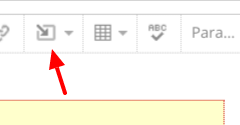
5. Go to your Schoology page and access your assignment, page, or other place you want the content to appear and follow the steps in the picture below
Image result for embed in schoology

Now your content should appear! Schoology and other sites also play nicely with Google products like Drive and YouTube. The insert content button on many pages allows you to import embed code directly without having to follow the steps above. 

Image result for schoology insert content google
6. If you are using a different site, the process is similar, you just need to find a way to switch to HTML view for a moment. Sites like Weebly, Blogger, and Word Press all have these options. 

A few tips:- You can play with the width/height numbers in the code to adjust the size of the content you embed. 
-The Publish button (under file) in Google Slides, Docs, and Sheets can provide an embed code so you can directly link content into a page too (again, Schoology has easier ways of doing this through the Google Drive App, but for other sites it can be a useful tool.).
save image-Many content creation sites like blogs, web design programs, and learning management systems have a button or menu choice to switch between HTML view and WYSIWYG (what you see is what you get) view. HTML view is where you can paste in code.

As always, feel free to contact your ed-tech coach with any questions or to learn more!

Happy Embedding!

Tuesday, May 8, 2018

Spotlight on Pointview's Efforts to Reach Parents and Strengthen Communication

Creating a communication system that is accessible to families, supports a wide variety of content, is easy for staff members to use, and doesn’t cost any extra money is a dream for many school leaders seeking to build stronger school-home connections. Pointview Elementary principal Sherry Birchem is one such leader. Sherry is in tune with the needs of her families and her staff and has worked diligently to build a strong sense of community in her building, including spearheading the effort to streamline school-home communication. After many trials, Sherry has found the system that fits the bill: Schoology. Through making use of Schoology's easy sign-up process, closed system for sharing images and video, and ability to send emails and text messages to families when updates are posted, Sherry is set to create a robust communication system that meets the needs of Pointview’s staff and families.


Watch this video to learn about how Sherry is working to better connect the Pointview community, including what she has tried in the past, why she is excited about Schoology, and what lies ahead:


Interested in setting up a school-home communication system in your building through Schoology? Contact your Ed Tech Coach today!

Thursday, May 3, 2018

Alexa, Siri, Google, whoever you are, set up voice control for my classroom.

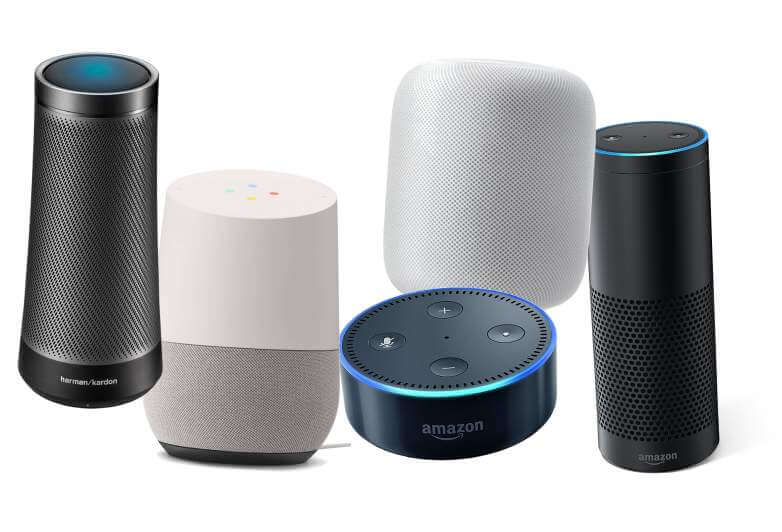
The ever more ubiquitous Amazon Echo devices and other smart assistants like Google Home are great for home use. If you have one, you may have already realized some of the things it can do: play music, change the thermostat, read recipes, and a host of entertainment options. Most of these functions come from third part apps. There are thousands of existing skills or apps with more being added daily.  One of the most useful functions is that a smart speaker has an answer to most questions you can ask. If you ever wondered what imitation vanilla extract is (you don't want to know), Alexa or Google has the answer. While all of this is a nice gimmick and a fun addition to your home, smart home  devices have some useful applications for school as well.
Image result for smart speakers

1. Automating class procedures: Smart home devices can set timers, play music, keep calendars, and play reminders for transitions in classes allowing the teacher and students to focus on learning.  They also has a number of built in skills like rolling dice, picking random numbers, picking cards, calculator, thesaurus, and dictionary functions as well. Simply ask for what you need and you get it!

2. Specific questions: Smart home devices can also help students to find basic answers to questions they may have. If the teacher is busy working with a student and someone wonders how long the Great Wall of China is, they can ask and get an immediate answer all through using their voice.
Image result for alexa in classroom

3. Custom Skills: Amazon recently created a system for creating custom Apps called Skill Blueprints. You can choose from a variety of premade templates to create skills that can assist in the classroom. There are a large number of options, but some will be more useful in the classroom than others.

-Storyteller: Students and/or teachers can create custom made, interactive stories that follow a genre theme. Right now there are options for fairy tales, sci-fi, fables, and adventures.

-Custom Q&A: set up custom questions and answers for common questions in the classroom

-Babysitter: Avoiding the name, this skill allows you to set up instructions and steps to follow. This could be very useful for when a sub is in the room, or for setting up recurring sets of instructions for classroom procedures.

-Quiz/Flashcard programs: You can also create quiz and flashcard skills that are custom built for any subject area you might want. You can choose the questions, answers, and hints. There is a learn mode and a test mode for these skills as well.

-Others: To add a bit of fun depending on your classroom, there are customizable jokes, inspirations, insults, and games that can be used in the classroom as well.

But Wait! There's more!
Chromebooks have a built in voice assistant as well. It is turned off by default, but can be turned on. While there is not the level of customization available that Amazon has (for the moment) It can be used to control Google searches, timers, calculators, and other basic functions using your voice. If you would like to set it up, follow the instructions here

If you have a smart device at home, try out the  features and consider if it would be a good addition to your classroom. If you are interested in learning more, contact your Ed-Tech Coach! or check out the additional resources here:
ITSE on the use of digital assistants

Friday, March 23, 2018

The Augmented Reality Sandbox in Action

If you read our earlier blog post on our district’s Augmented Reality Sandbox, you likely have an idea of how the tool can enhance student learning through hands-on and experiential activities. As the sandbox has made its way to different buildings in the district this year, our creative teachers have added their own spin to how they use the sandbox to engage their students.

Amber Korn at Huber Ridge is one such teacher. Amber took full advantage of the sandbox’s time at Huber Ridge to deepen her 4th graders’ understanding of weathering and erosion. Working in stations, students built landforms, reproduced natural events, and observed the impact of weather on topography. While they greatly enjoyed building mountains, digging out lakes, and causing earthquakes, the most exciting part for many of the students was making it “rain” in the sandbox with virtual water. By making it rain, they were able to see the movement of the water and predict the impact water has on landforms. But Amber didn’t stop there! She brought the learning experience home through the use of higher-level thinking activities. Once everyone in the class was able to experience the sandbox, the students got together and connected what they had observed in the sandbox with what they had already learned about landforms, developing a more thorough understanding of the meaning and impacts of weathering and erosion. The class created a collaborative document detailing their understanding of these concepts and each student made their own artistic representation of the impact weathering and erosion have on Earth’s landforms. Through manipulating the content in multiple ways, Amber used the power of experiential learning to engage her students and bring her science unit alive in a new and exciting way that her students won’t soon forget.

Watch this video by UCLA to see how the AR Sandbox works.


The AR Sandbox has great potential for any grade level and subject, such as illustrating point of view, making inferences, solving multi-step problems, demonstrating cause and effect, creating sculptures that reflect contour lines, and even helping students process emotion, to name a few. Want to experience the AR Sandbox for yourself? Good news! The sandbox will be a part of Westerville Partners for Education’s Starry Night event on April 8th at Westerville North High School. Come and check it out!


If you would like to explore how to use the sandbox with your students, contact your Ed Tech Coach!

Tuesday, March 6, 2018

Spotlight on Blended Learning: The “Switzerland” Project


Switzerland is known for its mountains, chocolate, and neutrality. Recently, at Pointview Elementary, Mrs. Lester’s fourth grade ELA students were reminded of Switzerland’s notoriety in neutrality during an engaging lesson that focused on close reading for pros and cons and practicing civil discourse.  

The students began by reading an article assigned to them through Schoology from the Newsela website. The article focused on the pros and cons of self driving cars. (Newsela works well for finding resources like this as the articles can be narrowed by Lexile level and the topics are high interest and timely. You could also assign different articles depending on level to differentiate for all students.) First, the students read for understanding. Some used the “read-to feature from Google Read and Write. Teacher/Coach created annotations were written in the article ahead of time so that all students could read them and respond as they read. The students read a second time searching for pros and cons. They were asked to use the highlighting tools to save the pros and cons which they then transferred to their graphic organizer.

After a quick group discussion in which students compiled and expanded on the pros and cons they realized the importance of gathering solid evidence as it would be used to have a civil debate. The students would have the chance to role play three roles, “pro”, “con”, and “Switzerland”. Mrs. Lester, Mrs. Lacy, and Mrs. Mantinieks would model this type of civil discourse in a “fishbowl” scenario. As the teachers respectfully supported their assigned role, students took notes about what they were watching. They addressed the prompts of “What words did the speakers use to debate in a kind way?” and “What body language did the speakers use to debate in a kind way?” Students noted that “they used words like “please” and “thank you”, “they used calm voices and mentioned that they liked hearing new ideas”, and “they nodded their heads, smiled, and kept their hands to themselves”.

After the “fishbowl” the group debriefed what they saw and prepared to practice civil discourse themselves as they play each role. The students look forward to continuing this next week.

This lesson could be adapted in many ways and with many topics, with many grade levels. It provides opportunities to develop multiple skills such as close reading, writing a balanced opinion, and practicing friendly debate and conversation.

Educator Reflections: 

What would you repeat from the lesson?“They were SO engaged while reading-that was beautiful!”
What would you change for next time?
Next time “I would like to find a way to have the kiddos mark their citations so they know where they found the info.” 
The group also agreed it would be neat to add more choice for the students next time by having several topics with pros and cons from which they could choose.
How did the collaboration between the classroom teacher, curriculum specialist, and blended learning coach improve this lesson?
”Taking a little time to collaborate was an energizing experience. Together we made sure that the lesson was relevant for the kids and tied in to their prior knowledge. We took a leap together to try a new approach to engage a very social class. Having the technology integration specialist there put us at ease that we could work through any tech issues that might pop up. Having the three perspectives also leads to great post conference debrief conversations”. 

Coach Reflections: 

“I think it would be great to model a “mistake” in the fishbowl and show the “civil” way to handle when you or someone else makes a mistake”.

What a great lesson Mrs. Lester!

For more information on teaching civil discourse concepts check out the book, Engaging Children, which will be available April 9, 2018. https://www.heinemann.com/products/e09949.aspx#fulldesc

For help implementing any of these ideas in your classroom please contact your Ed Tech Team.


Thursday, February 22, 2018

Unpacking the TPACK Model for lesson design

The education world has created many models of learning, from Bloom's Taxonomy to the P21 Framework, there are models that fit pretty much any theory of teaching and learning that has ever existed. Despite this, most models work to structure learning in the same way: a continuum of lower to higher level thinking. As teachers, these models can be useful for structuring lessons, but the focus on student learning doesn't always correlate well when trying to visualize good lesson design. The TPACK model attempts to bring together the most vital pieces of lesson design into one easy to follow graphic.
The TPACK model breaks a lesson into three parts: Content knowledge, Pedagogical knowledge, and Technological knowledge. While good lessons can be created with portions of this model, use of the entire trinity yields lessons that plan for the greatest student experiences. Unpacking TPACK can help in designing the best lessons possible. 

Content: 
Content knowledge is a vital part of teaching. If the teacher is unsure of the subject matter, chances are that the students will not effectively learn about it.  The most direct application of content knowledge tends to be a lecture based class, a method that makes use of the teacher's knowledge to disseminate information to students. Taken without the other two facets of the TPACK model, a focus on content while excluding pedagogy and technology makes student centered instruction much more difficult. 

Pedagogy: 
Second in the TPACK trinity is Pedagogical knowledge. Without understanding how students learn, it is difficult for a teacher to achieve any goals they may have. The traditional methods of education combine the pedagogical and content portions of this mode to create curricula. These may be student or teacher centered, and may or may not provide ways for all students to access and engage with content in ways that work best for them. 

Technological Knowledge:
Technological Knowledge represents the last of the three components of TPACK. it is also the newest. While new educational technologies have always existed (pencils anyone?) The speed and impact of current trends in educational technology make knowledge of technology and how to best implement it incredibly important to our teaching practice. Technology on it's own is a gimmick that will not create strong learning opportunities, but combined with strong pedagogy and content knowledge, it creates opportunities to personalize learning for all students. Prior to having good access to educational technology, teachers could customize learning for all students by creating tiered lessons, providing different resources, and alternate means of assessment, but in order to do this well, it required a large time investment. Today, learning technologies allow teachers to create banks of resources, assessments, and assignments that can be differentiated based on student need. It also enables greater collaboration and sharing of resources, expands methods of demonstrating knowledge, and provides opportunities to strengthen the effect that good pedagogy and content knowledge have. 
Want to know more about TPACK or work to build your skills in any of the three categories of TPACK?  Contact your friendly local ed-tech coach!

Tuesday, February 6, 2018

Personalization- The Growing Reality in Westerville City Schools

The Goal... to be an educational leader who collaborates with stakeholders to better personalize professional learning for your staff.  

The Goal... to be a adult learner who continuously grows in an environment of professional learning that is designed to meet your needs and with your input.

Sound out of reach?  It isn't- it is becoming a growing reality in Westerville City Schools.  Inspired by their own professional learning, like Leadership in Blended Learning, the Future Ready Institute, and knowledge about how adult learners grow best professionally, WCS is gradually replacing leader-centered staff meetings and other professional learning opportunities with a                                                       more personalized, customized and individualized approach.


Teachers leading staff meetings by sharing practices that are working in their classrooms? 

Teachers reflecting on what they need as a learner to improve instructional practice to benefit their students?

Building leaders reflecting on how to make learning opportunities more meaningful?

Building leadership teams working together to involve staff in how we can achieve these goals?

Yes- these things are all happening!  We are making amazing strides toward personalization very quickly.  

You may be asking yourself....How do we get started?  What are the steps to move in this direction?  How do we do this together, as a community of learners?  

We would like to share this Future Ready Personalized Professional Learning Self-Assessment which defines elements of personalized professional learning that many of us are working toward.  It's a tool to help grow our thinking and spur further conversations.  If you have any questions about personalization of professional learning, contact your Ed Tech Team.  We are supporting this work each and every day and can connect you with a growing group of educators who believe in the importance of this journey to personalize education- for everyone!

Thursday, February 1, 2018

Schoology's Big Blue Button Feature is Now Called Schoology Conferences


Looking for a professional solution for video conferencing within Schoology? Schoology Conferences provides real-time sharing of audio, video, slides, chat, and screens. Schoology Conferences enables schools and organizations to deliver a high quality learning experience to remote students.
You can use this app to schedule video conferences with your students and take advantage of these great features:
  • Interactive Whiteboard
  • Integrated VoIP
  • Presentation Mode
  • Video Conferencing
Check it out in the app store.
BigBlueButton is now Schoology Conferences

Friday, January 19, 2018

Clint Eastwood and the Road to Individualized Professional Development.

At Genoa Middle School, staff meetings look a little different this year. Principal Mike Hinze and Assistant Principal Chris Poynter are redefining professional development for teachers. The goal? To address the disconnect between how we best learn and how pd sessions are conducted. In most measures of teacher quality, the ability to differentiate and individualize learning are a major focus for evaluation, yet most teachers attend pd sessions that are presented in a one size fits all approach. We hope to document the journey that Genoa is making to a new style of professional development through this blog.

Initial Steps: 

Redefining pd takes some brainstorming to wrap one's mind around. As with any major shift in curriculum and teaching style, thought needs to be put into the process so that resources can be gathered and roadblocks can be anticipated. Genoa's first step was to lay out the structure that would be followed to individualize teacher development. Since all teachers are required to go through the OTES process, the goal setting piece of teacher evaluation would be used to generate goals for individualized pd as well. To serve as a check on progress, there would be some sort of deliverable or progress check at specific intervals during a pd cycle. Teachers would also be responsible for tracking their time and progress and reporting out at these progress checks. At the end of the cycle, share outs would take place to ensure that all staff members benefit from the learning that each teacher is doing.  Time frames for these sessions and more details will be developed as the cycles are proposed and developed by teachers. Possible topics were brainstormed and a library of resources for possible topics was begun using existing pd courses in Schoology, book studies, websites, and through leveraging district departments that are responsible for the areas that these topics might cover.

Involving Staff: 
The next step in the individualized pd process was to involve teachers, get feedback, and wipe the pd slate clean. A staff meeting was held where building culture around pd was discussed. Very quickly it became evident that staff members wanted more voice and choice in the content of pd sessions.  An activity where staff identified The Good, the Bad and, and the Ugly, was conducted and results were tabulated. Good pd (worthwhile and relevant) was identified as well as bad (not great, but salvageable) and ugly (stay far far away from this).

See? Clint Eastwood made an appearance!

Interestingly, there was mixed feedback about many of the pd sessions of past years. The most common items in all three categories were very similar. This pointed to the need for pd to be individualized so that, according to Chris Poynter, "teachers can grow exactly where they need, and have interest, in a way that best benefits teaching and learning for the students of Genoa Middle School"


The next staff meeting reviewed the feedback from the Clint Eastwood Exercise
 and formulated the next steps in the process: The Expectation

The Expectation: 
Teachers have been asked to choose a topic that is needed and interesting that pertains to their classroom practice. They will generate a challenging, attainable, and measurable goal for their growth.  From here, they will develop a learning plan as well decide how to demonstrate the impact on students. The goal is to complete this by the end of this school year in order to hit the ground running next year. Teachers used a forum to submit topic ideas for PD and talk about the different possibilities that these offered. 
The forum generated an expansive list of options as well as strong rationales as the the value of these topics including Social Emotional Learning, Technology, models of teaching like stations, PBL,  or centers, writing, and student culture. Teachers can form groups or work individually to find the topics that are most important to them and their teaching. 

Future Steps: 
Staff members will be developing their plans through the rest of this year and begin implementing them next year. The successes and difficulties of this process will be an important part of demonstrating the value of the different proposals and how they align with teacher's goals for their professional growth.  Stay tuned for more information on the development of the requirements for deliverables, how reflections and feedback will be incorporated, and other details!